Security
Settings → System → Common → Security holds the sign-in rules for everyone in the organization. You can allow Log in with Microsoft, turn on multi-factor authentication (MFA), lock unused accounts, set password rules, and limit which email domains may be used. Each control saves when you change it.
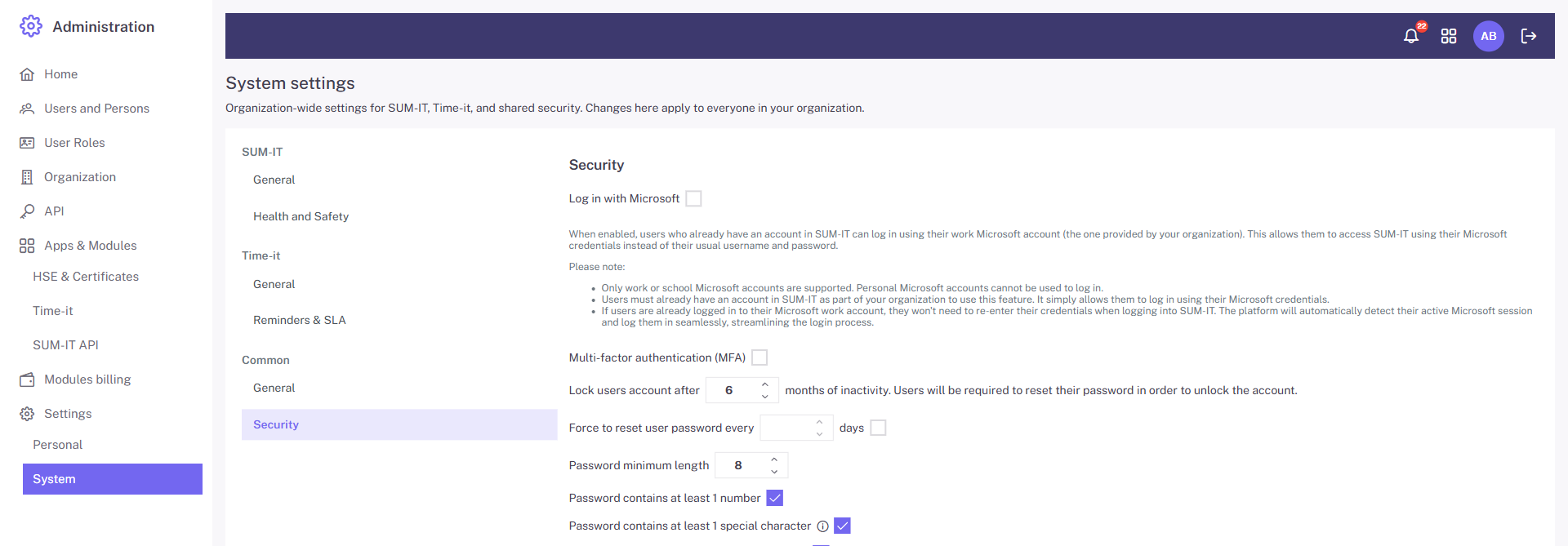
Change these with care. They affect how everyone in the organization signs in. People who are already signed in keep their current session; the new rules apply the next time someone signs in, sets a password, or (for account lock) when the daily lock check runs.
Settings
Below you can see what each security setting does and what changes when you turn it on or off.
Log in with Microsoft
Log in with Microsoft lets people who already have a user in your organization sign in with their work or school Microsoft account instead of a username and password. Personal Microsoft accounts are not supported. If they are already signed in to Microsoft at work, sign-in can complete without typing those credentials again.
When this is on, MFA, account lock, forced password reset, and password-rule controls are hidden, and MFA is turned off for the organization. When it is off, people sign in with email and password again, and those other controls return.
Turning Log in with Microsoft on or off does not sign people out. The next sign-in uses the new method.
Multi-factor authentication (MFA)
Multi-factor authentication (MFA) adds a second step after the password. People must enter a one-time code before sign-in finishes. This option appears when Microsoft login support is available for your organization, and only while Log in with Microsoft is off.
Turn the main checkbox on, then choose at least one method below. You cannot leave MFA on with no method selected. Turn it off to stop asking for a second code.
Use code generated by authenticator application to complete login
This method lets people use a code from an authenticator app on their phone. When it is on (with MFA on), that app is an allowed way to finish sign-in. When it is off, authenticator codes are not offered.
Use code sent to mobile number to complete login
This method sends a one-time code by SMS to the person's mobile number. It appears only when SMS MFA is available in your environment. When it is on (with MFA on), SMS is an allowed way to finish sign-in. When it is off, SMS codes are not offered.
Use code sent to email address to complete login
This method sends a one-time code to the person's email. When it is on (with MFA on), email is an allowed way to finish sign-in. When it is off, email codes are not offered.
Lock users account after months of inactivity
Lock users account after sets how many months without a sign-in before an active account is locked. The default is 6 months. You can set a value from 1 to 999. A daily check locks accounts that have been inactive longer than this.
Locked people cannot sign in until they reset their password. That reset unlocks the account. Organizations with Log in with Microsoft on are skipped by this lock check, and the control is hidden while Microsoft login is on.
Force to reset user password every days
Force to reset user password every sets how many days a password may stay before it must be changed, counted from each person's last password change. Tick the checkbox and enter the number of days to turn the rule on. Clear the checkbox to stop requiring password changes by age.
While Log in with Microsoft is on, this control is hidden, because people sign in with Microsoft rather than an organization password.
Password minimum length
Password minimum length is the shortest password people may set. The default is 8 characters. Allowed values are from 6 to 99. The rule is checked when someone sets or resets a password. Existing passwords stay as they are until the next change.
Password contains at least 1 number
When Password contains at least 1 number is on, a new or reset password must include at least one digit. When it is off, a number is not required. Defaults to on for new organizations.
Password contains at least 1 special character
When Password contains at least 1 special character is on, a new or reset password must include at least one special character. Hover the info icon on the screen to see which characters count. When it is off, a special character is not required. Defaults to on for new organizations.
Password contains at least 1 uppercase letter
When Password contains at least 1 uppercase letter is on, a new or reset password must include at least one uppercase letter. When it is off, an uppercase letter is not required. Defaults to on for new organizations.
Password contains at least 1 lowercase letter
When Password contains at least 1 lowercase letter is on, a new or reset password must include at least one lowercase letter. When it is off, a lowercase letter is not required. Defaults to on for new organizations.
Allow user email addresses from the following domains
Allow user email addresses from the following domains is the allowed list of email domains for users in your organization. Separate domains with a comma (for example company.com, partner.org). Leave it empty to skip domain checks.
When the list has domains, new or edited user emails must match one of them, unless the address is on the exception list. If you tighten the list and some existing users would no longer match, you are asked whether to add those emails to the exceptions.
Exclude the following email addresses from domain validation
Exclude the following email addresses from domain validation lists full email addresses that may keep domains outside the allowed list. Separate addresses with a comma. Use this for known exceptions when domain validation is on.
Permissions
Opening this screen needs the System settings View permission. Changing values needs the System settings Edit permission.